
When a partition, particularly the C drive, runs out of space, the most effective solution is to reallocate free space from another volume on the same disk. Similar to its predecessors, the native Disk Management utility in Windows Server 2022/2025 includes a built-in "Extend Volume" option. However, many system administrators find that they cannot expand their volumes because the "Extend Volume" option is greyed out. This article details why Disk Management fails to extend partitions in Server 2022/2025 and provides efficient solutions to resolve this restriction seamlessly.
Why You Cannot Extend a Volume in Windows Server 2022/2025
There are four common reasons why Disk Management cannot extend a volume in Windows Server 2022/2025:
- The target partition is not formatted with a supported file system, such as NTFS or ReFS.
- No contiguous unallocated space is available directly to the right of the partition.
- The partition types are incompatible, such as attempting to extend a Primary partition using free space from a deleted Logical drive.
- The disk utilizes the MBR partition style, which enforces a maximum volume limitation of 2TB.
The following sections analyze each of these limitations in detail. To review your current storage layout, press the Windows key + X and select Disk Management.
Reason 1: The Partition Is Not Formatted with NTFS or ReFS
Windows environments commonly utilize multiple file systems, but the built-in Disk Management utility and the DiskPart command-line tool primarily support shrinking and extending NTFS and ReFS volumes. If the partition you intend to expand is formatted with an unsupported file system such as FAT32, the "Extend Volume" option will be greyed out.
Reason 2: Lack of Contiguous Unallocated Space on the Right
This is the most frequent reason why administrators cannot extend volumes in Windows Server 2022/2025 using native utilities. To successfully expand a volume, three critical requirements must be met:
- Unallocated space must exist on the same physical disk. Unlike the free space contained within an active partition, unallocated space is not assigned to any volume and must be generated by shrinking or deleting a partition.
- The unallocated space must be strictly adjacent to the NTFS or ReFS partition that you want to extend.
- The unallocated space must be positioned directly to the right of the target partition.
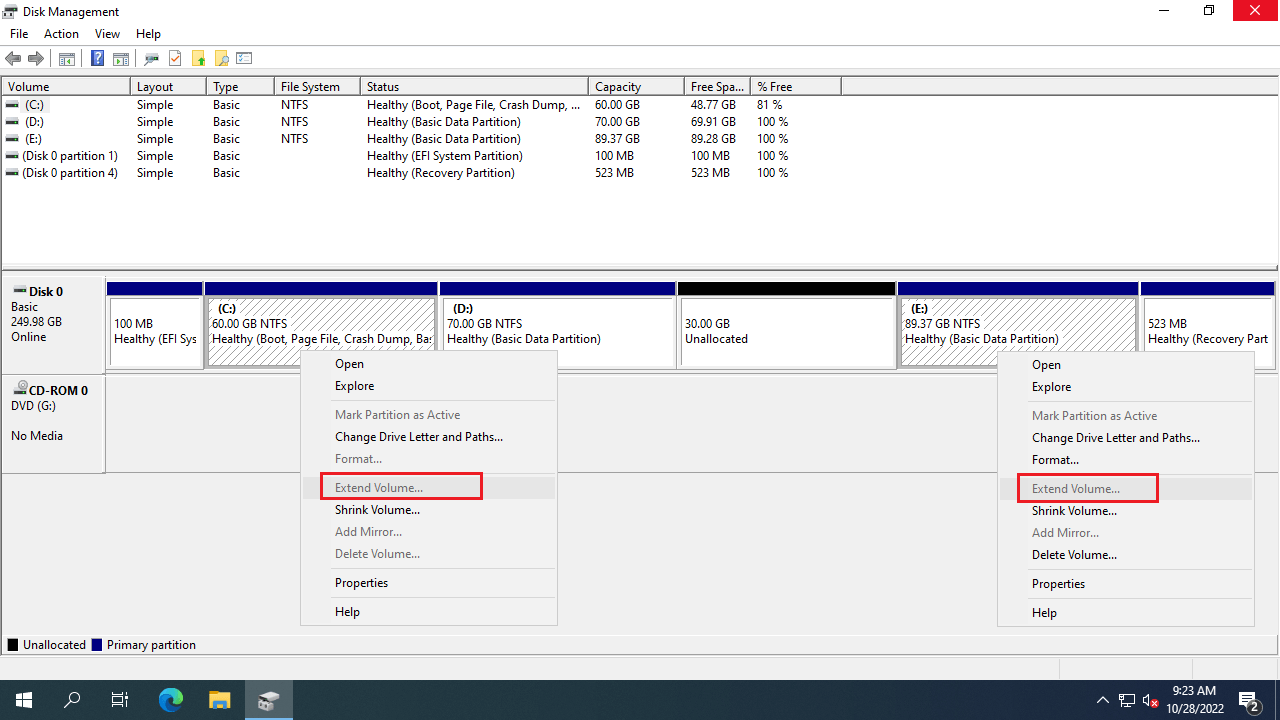
When you shrink a volume like the D drive using Disk Management or DiskPart, the resulting unallocated space is automatically created on the right side of that shrunken volume. Consequently, this space is non-contiguous to the C drive and sits to the left of the E drive. Because native tools cannot reallocate or move partitions, right-clicking either volume will show that the "Extend Volume" option is disabled.
Reason 3: Incompatible Partition Types
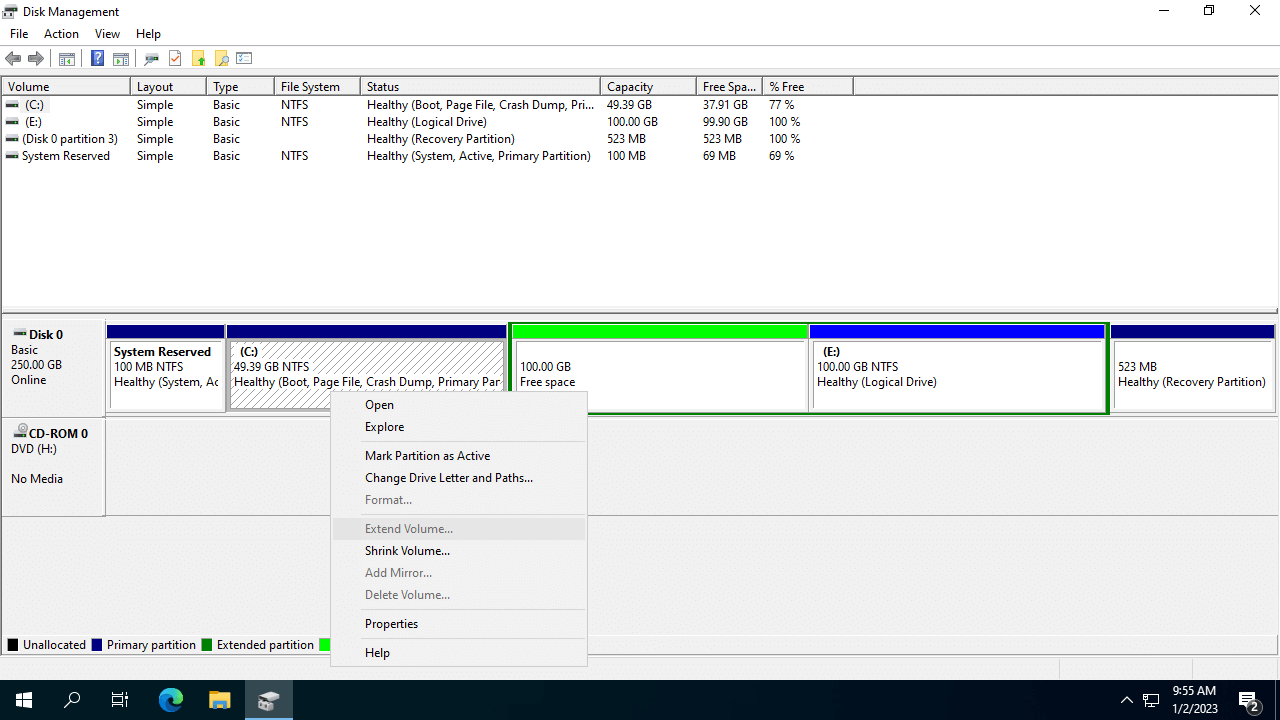
When system administrators cannot extend the C drive in Server 2022/2025 after shrinking the D drive, they often consider deleting the D drive to reclaim its space. However, this workaround introduces strict partition type limitations based on the disk's initialization style. On a GPT disk, all volumes are automatically created as Primary partitions, avoiding this conflict entirely. On an MBR disk, however, storage can be divided into a combination of Primary partitions and Logical drives. To successfully extend a volume by deleting the right-contiguous partition, both volumes must share the identical partition type.
The C drive is configured as a Primary partition on almost all servers. Consequently, if you intend to delete the D drive to expand the C drive, the D drive must also be a Primary partition. If the D drive is a Logical drive, its deletion results in "Free Space" rather than "Unallocated Space" within the Extended partition container. Because of this architectural difference, the "Extend Volume" option will remain greyed out even after the D drive is removed.
Caution: do not delete this partition if you installed programs or there are Windows services running from it.
Reason 4: 2TB Restriction on MBR Disk
Another limitation of MBR disks is that they can only handle a maximum partition size of 2TB. If a single partition is already 2TB, or if the total capacity of all partitions on the disk reaches 2TB, you cannot extend any partition to be larger—even if there is adjacent unallocated space on the right side.
Solutions if You Cannot Extend a Partition in Windows Server 2022/2025
When native utilities fail to extend a volume in Windows Server 2022/2025, NIUBI Partition Editor can resolve the issue regardless of the underlying cause. Because the exact resolution depends on your specific disk layout, you should first open the Disk Management console to identify the restriction, then follow the appropriate method below.
Solutions for when you cannot extend a volume in Windows Server 2022/2025:
- Shrink an adjacent partition to create unallocated space on either side.
- Move non-contiguous unallocated space to make it strictly adjacent to the target volume.
- Convert the MBR disk to GPT prior to expanding the partition.
Method 1: Shrink a Partition to Create Unallocated Space
If free space is available in another partition on the same disk, you can use NIUBI Partition Editor to shrink that volume and convert a portion of its unused capacity into unallocated space. All files within the shrunken partition remain completely intact. Unlike native Windows tools, NIUBI Partition Editor allows you to designate the newly generated unallocated space to be on either the left or right side of the volume.
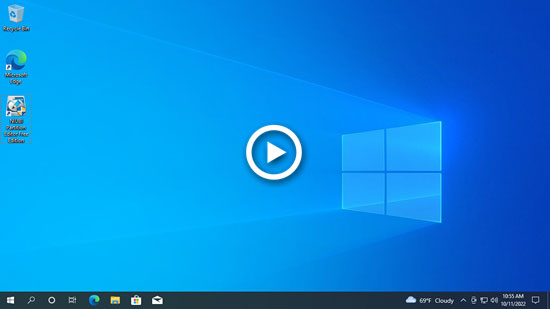
Download NIUBI Partition Editor and follow the steps in the video:
Method 2: Move Non-Contiguous Unallocated Space
If you have shrunk the D drive and generated unallocated space using Disk Management or the DiskPart command, as previously explained, this unallocated space cannot be merged into another partition without third-party software.
What to do when you cannot extend a volume in Server 2022/2025 after shrinking a partition:
- Right-click the D drive in NIUBI Partition Editor and select "Resize/Move Volume". In the pop-up window, drag the middle of the D drive toward the right to simultaneously relocate the unallocated space to the left.
- Right-click the C drive, select "Resize/Move Volume", and drag the right border toward the right to merge this unallocated space.
- Click "Apply" in the top-left corner to execute the pending changes.
If you intend to extend the E drive after shrinking the D drive, you can accomplish this without moving the unallocated space. Simply right-click the E drive, select "Resize/Move Volume", and drag the left border toward the left within the pop-up window.
Watch the video tutorial below to see how to move partition D to extend the C drive:
Method 3: Convert the MBR Disk to GPT Prior to Expanding the Partition
Converting a disk from MBR to GPT allows you to overcome the 2TB storage barrier and significantly expand your partitions. Watch the video tutorial below to safely convert MBR to GPT in Server 2022/2025:
In summary, when you cannot extend a partition in Windows Server 2022/2025, analyze your storage layout via Disk Management to identify the underlying cause and apply the appropriate solution outlined above. Beyond shrinking, moving, and extending partitions in Windows Server 2022/2025 and legacy versions from Server 2003 to 2019, NIUBI Partition Editor provides a comprehensive toolkit to clone, convert, defragment, hide, and wipe partitions, as well as optimize file systems and scan for bad sectors.
 © 2009 - NIUBI Technology All Rights Reserved. |