
Many administrators look to extend partitions in Windows Server 2022/2025 after running the system for a period of time. The system C drive and other volumes—such as those dedicated to databases or backups—frequently run out of space. The ideal solution is to extend the volume directly, avoiding the need to waste valuable time re-creating partitions and restoring everything from a backup. To extend a volume in Windows Server 2022/2025, you can utilize either built-in Windows utilities or third-party software. However, due to inherent limitations, the native tools only work under very specific conditions. Consequently, using safe and reliable partition software is often the best choice. This article introduces 3 efficient ways to extend partitions in Windows Server 2022/2025 without losing data.
1. Extend Volume in Windows Server 2022 with DiskPart Command-Line
DiskPart is a built-in Windows utility that runs from the Command Prompt. It allows you to perform various disk and partition management operations, such as creating, deleting, formatting, converting, shrinking, and extending volumes.
Press the Windows key + R on your keyboard to open the Run dialog, type diskpart, and press Enter to open the DiskPart command prompt window. Type "?" and press Enter to view all available commands.
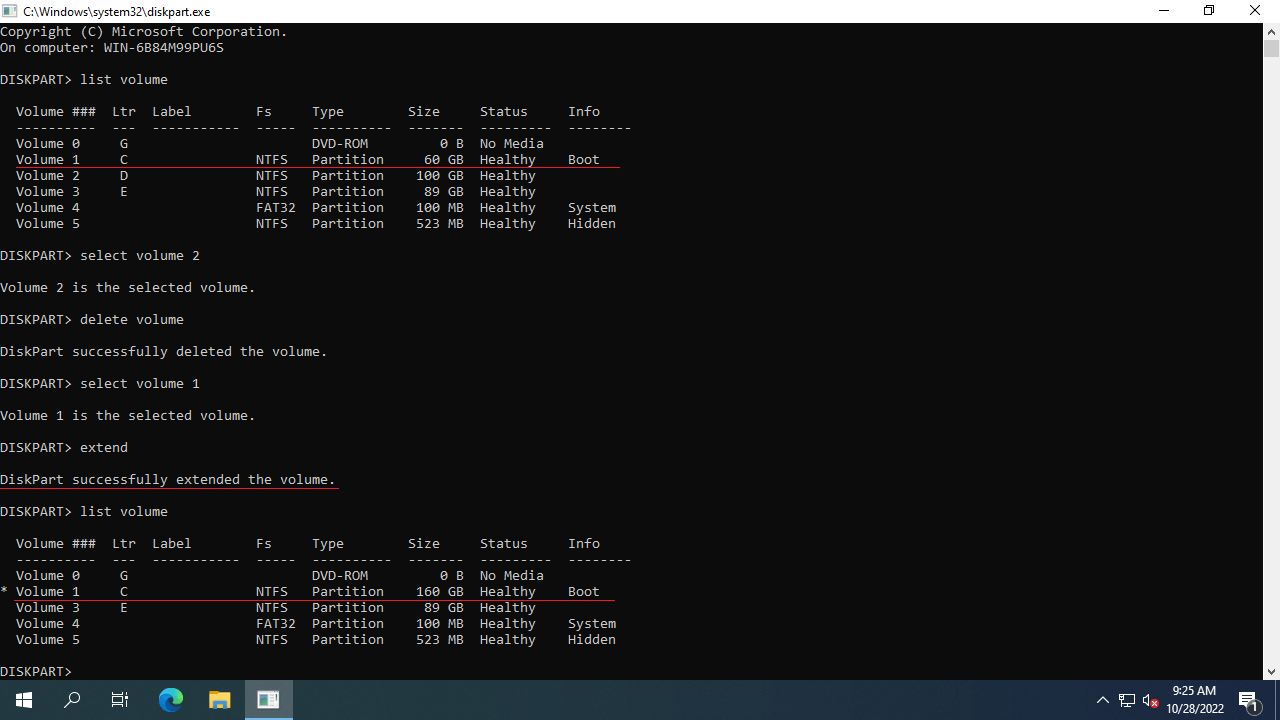
How to extend partition C in Server 2022/2025 with DiskPart command:
- Follow the method above to open the DiskPart command prompt.
- Type list volume and press Enter to display a list of all partitions.
- Type select volume D and press Enter. (D is the number or drive letter of the adjacent partition on the right.)
- Type delete volume and press Enter.
- Type select volume C and press Enter.
- Type extend and press Enter.
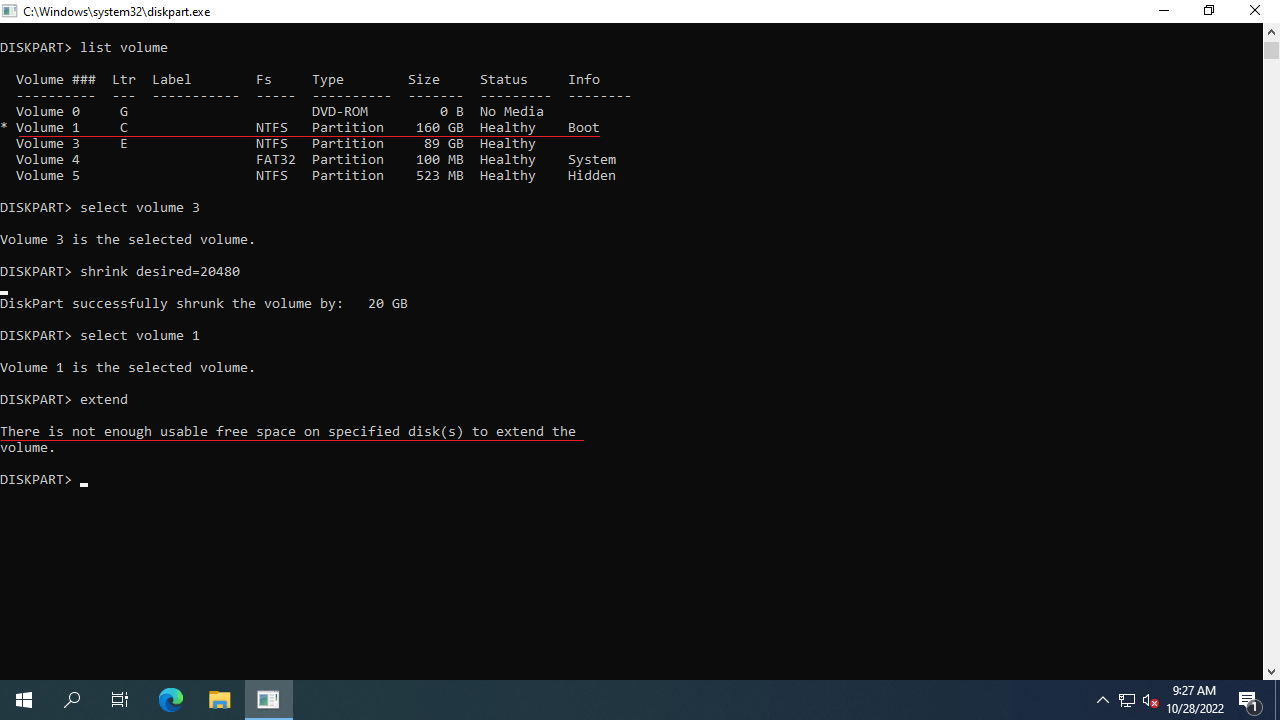
Since a "shrink" command is available, you might wonder: why not simply shrink the contiguous D drive to extend the C drive? The problem is that when you shrink the D drive or any other partition using the diskpart command, the unallocated space is automatically created on its right side. Consequently, this unallocated space remains non-adjacent to the C drive. Because the DiskPart "extend" command can only expand an NTFS or ReFS partition when there is adjacent unallocated space on its right, it cannot bridge this gap. If you attempt to shrink the D drive to extend the C drive via diskpart, you will receive this error message: "There is not enough usable free space on the specified disk(s) to extend the volume."
2. Extend Partition in Server 2022/2025 with Disk Management
Disk Management is another native Windows tool featuring a graphical user interface (GUI), making it more user-friendly for many administrators. However, much like the diskpart command, Disk Management can only extend an NTFS or ReFS partition when there is adjacent unallocated space on its right. This means you would have to completely delete the D drive just to extend the C drive. Additionally, to extend a partition in Windows Server 2022/2025 using Disk Management, the volume you wish to extend and the partition to be deleted must share the same type—either both Primary partitions or both Logical drives. Otherwise, the "Extend Volume" option will remain greyed out, even after deleting the adjacent partition.
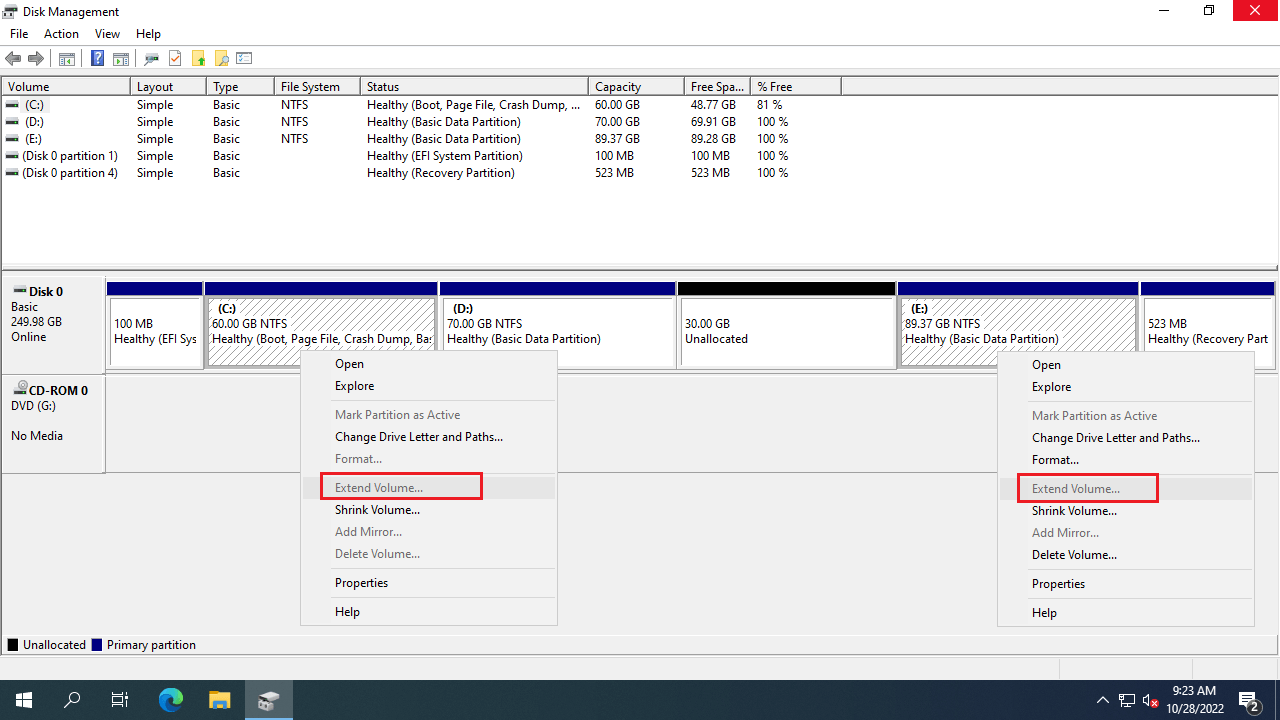
For example, if the D: drive is shrunk to create 30GB of unallocated space, as shown in the screenshot below, the "Extend Volume" option is greyed out for both the C and E drives because this unallocated space is non-adjacent to the C drive and sits to the left of the E drive.
If the D drive is a Primary partition on your server and you can afford to delete it, follow the steps below. Otherwise, skip to the next section.
How to extend a volume in Windows Server 2022/2025 without third-party software:
- Press the Windows key + X on your keyboard and select Disk Management from the menu.
- Right-click the adjacent D drive and select "Delete Volume...".
- Right-click the C drive and select "Extend Volume...". Follow the Extend Volume Wizard, clicking "Next" until you click "Finish".
If your disk partition configuration does not meet these requirements, or if you do not want to delete any partitions, you should use a safe disk partition utility instead.
3. Extend Server 2022 Volume with Safe Partition Software
To ensure maximum data protection, NIUBI Partition Editor features Virtual Mode, Cancel-at-will, 1-Second Rollback, and Hot-Clone technologies to comprehensively protect your server system and data.
Download this program. Upon launching it, you will see the main window displaying the disk partition layout and other detailed information.
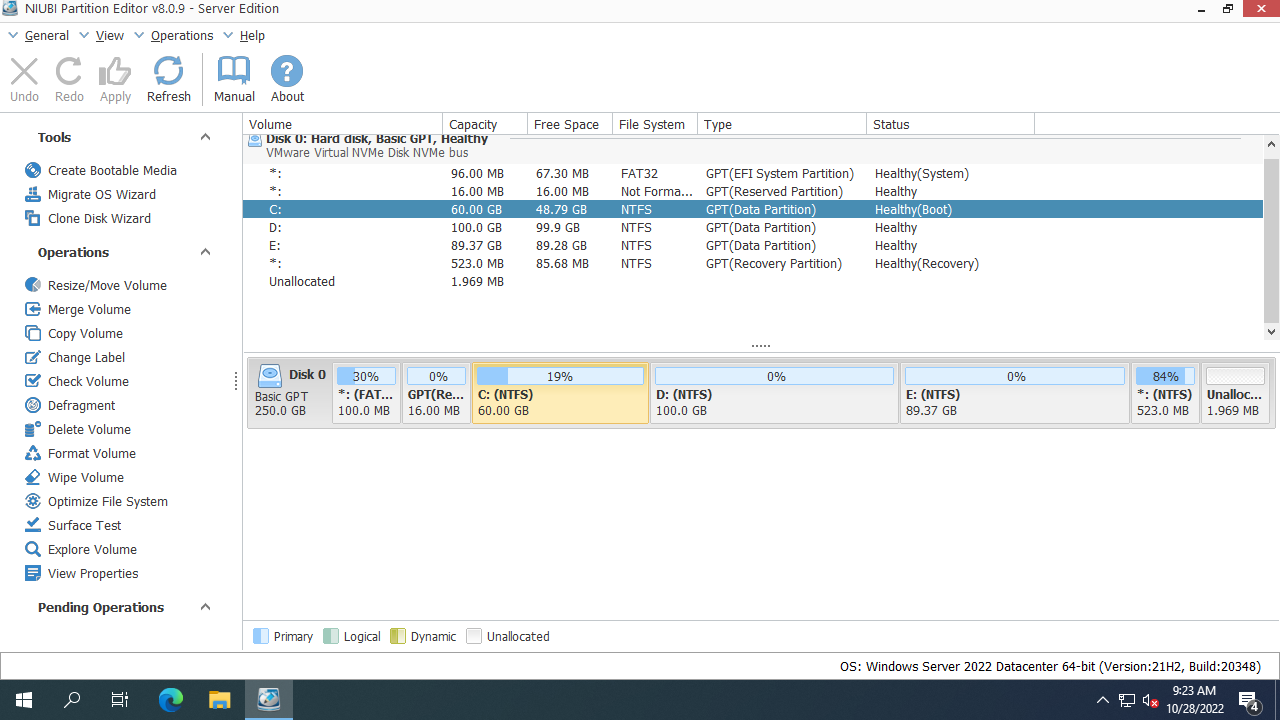
How to extend a volume in Windows Server 2022/2025 without losing data:
- Right-click the adjacent D drive, select "Resize/Move Volume" in NIUBI Partition Editor, and drag the left border toward the right in the pop-up window. This will shrink the D drive and create unallocated space on its left side.
- Right-click the C drive, select "Resize/Move Volume", and drag the right border toward the right to merge this unallocated space.
- Click "Apply" in the top-left corner of the main window to execute the changes.
Follow the steps in the video to extend the C drive in Windows Server 2022/2025.
- If you want to shrink the D drive to extend the E drive, drag the right border toward the left in Step 1, and then drag the left border toward the left in Step 2.
- If you want to shrink the E drive to extend the C drive, an additional step is required to move the D drive to the right, which positions the unallocated space immediately next to the C drive.
- If you need to extend a Windows Server 2022/2025 partition within VMware, Hyper-V, or virtual RAID environments, simply follow the exact same steps outlined above.
Beyond shrinking and extending volumes in Windows Server 2022/2025 and legacy versions from Server 2008 to 2019, NIUBI Partition Editor provides a comprehensive toolkit to move, merge, convert, clone, defragment, hide, and wipe partitions, as well as scan for bad sectors.
 © 2009 - NIUBI Technology All Rights Reserved. |