
There are several scenarios where you may need to merge partitions in Windows Server 2022/2025. For instance, when the C drive is running out of space, merging an adjacent volume into it can instantly increase its available capacity. Alternatively, if a disk contains too many individual partitions, combining them can simplify your storage structure and make it much easier to locate files. To merge volumes in Windows Server 2022/2025, you can use either the built-in Disk Management utility or specialized disk partition software. This article demonstrates how to combine partitions using both methods, allowing you to choose the solution that best suits your needs.
1. Merge Partitions in Server 2022/2025 with Windows Built-in Tool
Similar to previous versions, Windows Server 2022/2025 provides "Shrink Volume" and "Extend Volume" capabilities within Disk Management to adjust partition sizes. Although a native "Merge Volume" option does not exist, you can still combine two partitions indirectly. However, using this built-in utility to merge server partitions comes with several critical limitations:
- You must manually delete a partition to generate unallocated space before combining it with another volume.
- The utility can only merge unallocated space into the left-adjacent partition.
- The target partition on the left must be formatted with the NTFS or ReFS file system.
In short, you are forced to delete a volume and merge it strictly into the left-adjacent NTFS or ReFS partition. To overcome these restrictions without losing data, you must utilize safe third-party partition software.
How to merge partitions in Windows Server 2022/2025 using Disk Management:
- Right-click the partition on the right side and select "Delete Volume".
- Right-click the left-adjacent NTFS or ReFS partition and select "Extend Volume".
- Follow the Extend Volume Wizard, clicking "Next" until you click "Finish".
Windows also includes the native diskpart command-line tool, but it shares the exact same operational limitations as Disk Management.
2. Combine Partitions in Server 2022/2025 with Safe Partition Software
To ensure maximum data protection, NIUBI Partition Editor provides advanced features like Virtual Mode, Cancel-at-will, 1-Second Rollback, and Hot-Clone technology to comprehensively protect your server system and data.
After downloading and launching NIUBI Partition Editor, the main window will display your disk partition layout alongside detailed system information.
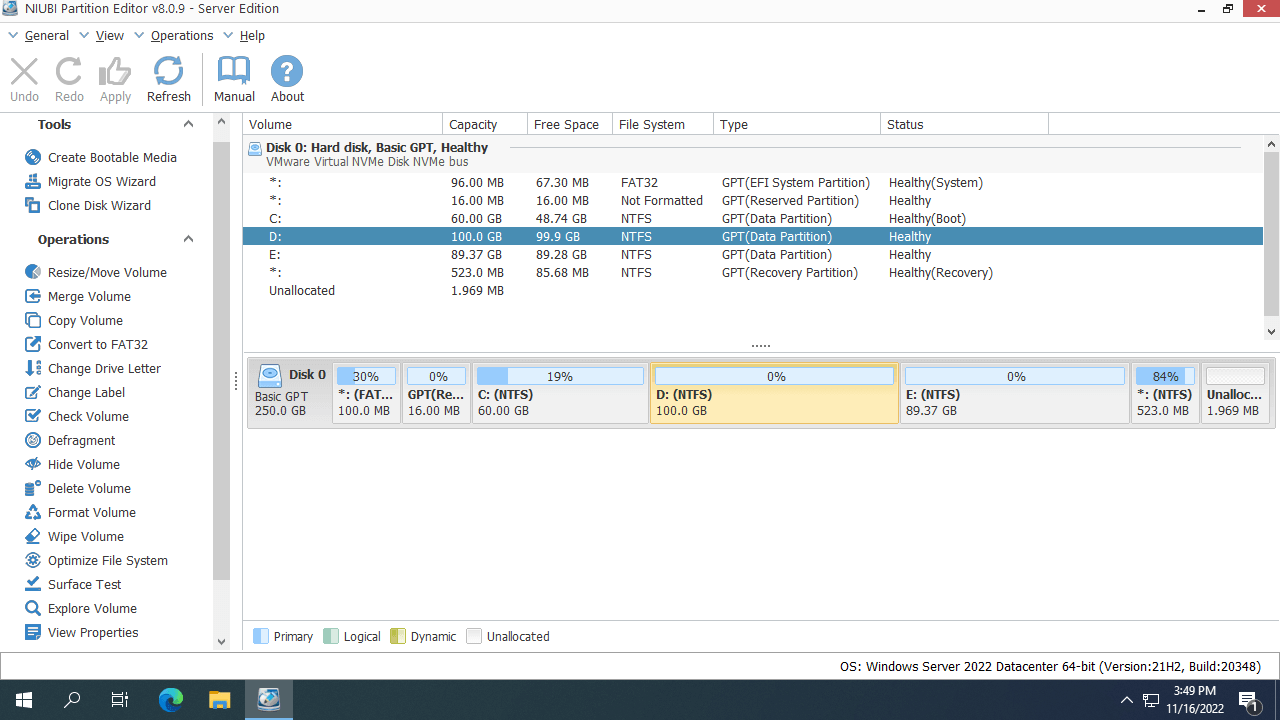
How to merge partitions in Windows Server 2022/2025 without losing data:
- Right-click either of the contiguous partitions and select "Merge Volume".
- In the pop-up window, check the boxes for both adjacent partitions and specify the target destination drive.
- Click "Apply" in the top-left corner to execute the pending operations.
For example, if you merge the C and D drives, all files from the D drive will be automatically moved to a designated folder in the root directory of the C drive.
To combine nonadjacent partitions, built-in Windows tools cannot assist you in any way. The following steps demonstrate how to merge the C and E drives as a practical example.
How to merge nonadjacent partitions in Windows Server 2022/2025:
- Transfer all files from the E drive to another secure location, then right-click the volume in NIUBI Partition Editor and select "Delete Volume".
- Right-click the middle D drive, select "Resize/Move Volume", and drag the middle of this partition toward the right within the pop-up window.
- Right-click the C drive, select "Resize/Move Volume", and drag the right border toward the right to merge the newly created unallocated space.
Shrink a Partition Instead of Merging
If your primary goal is to extend a partition, it is highly recommended to shrink another volume instead of merging them. Merging always causes the loss of an entire partition, which is impossible if critical programs or Windows services are actively running from that drive. With NIUBI Partition Editor, you can safely shrink any partition on the same disk to generate unallocated space without data loss. As a result, all files and configurations remain completely intact. Watch the video tutorial below to see how to shrink and extend partitions easily:
Beyond merging, shrinking, and extending partitions in Windows Server 2022/2025 and legacy versions from Server 2008 to 2019, NIUBI Partition Editor provides a comprehensive toolkit to copy, wipe, convert, hide, and defragment partitions, as well as optimize file systems and scan for bad sectors.
 © 2009 - NIUBI Technology All Rights Reserved. |